
Guide: upload and blur your video
The site never stores video files. You put the video on your own channel and share the link. You can remove it at any time.
YouTube
- Open or create a YouTube account and go to YouTube Studio.
- Press Create → Upload videos and choose the file.
- Set visibility to Unlisted (only people with the link can see it) if you do not want it in public search.
- Blur: open the video in Studio → Editor → Blur.
- Face blur: choose the faces to blur. YouTube finds them automatically.
- Custom blur: draw a box over a number plate. The blur follows the object through the clip.
- Press Save. Blurring can take a while to finish.
- Press Share and copy the link.
- Paste the link on Share a video and tick the blur box.
Step by step
The drawings are simplified illustrations, not screenshots, and in Danish. The buttons may look a little different for you.
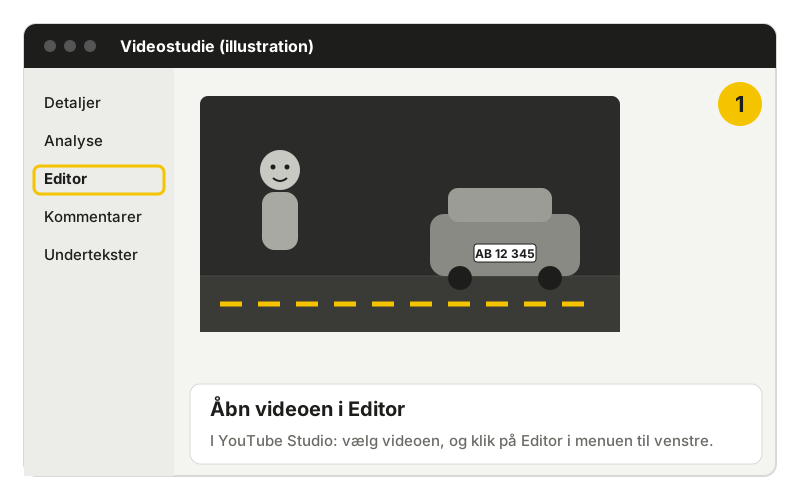
Trin 1: Åbn Editor Videoen åbnes i Editor i YouTube Studio. 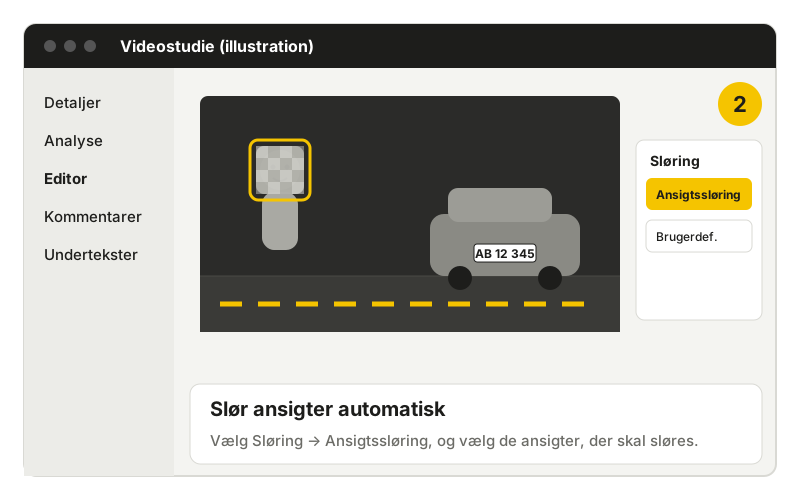
Trin 2: Ansigtssløring Automatisk sløring af ansigter. 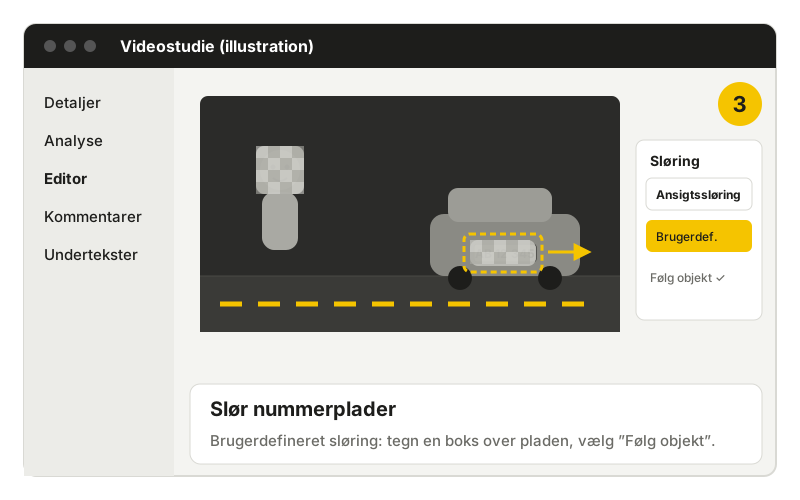
Trin 3: Slør nummerplade Brugerdefineret sløring der følger nummerpladen. 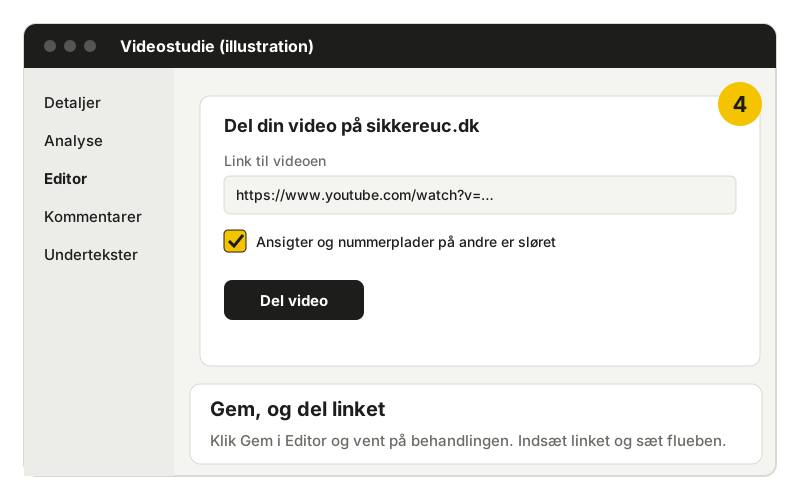
Trin 4: Del linket Link indsættes på sikkereuc.dk med flueben for sløring.
BitChute
- Log in to BitChute and upload the video.
- BitChute has no built-in blur tool. Blur faces and number plates in an editing program before uploading.
- Copy the link to the video (bitchute.com/video/…) and paste it on the site.
Why blur?
Other people have a right not to be shown. A moderator checks every video and sends it back with a link here if something still needs blurring.